Posts

New Navigation View

Image
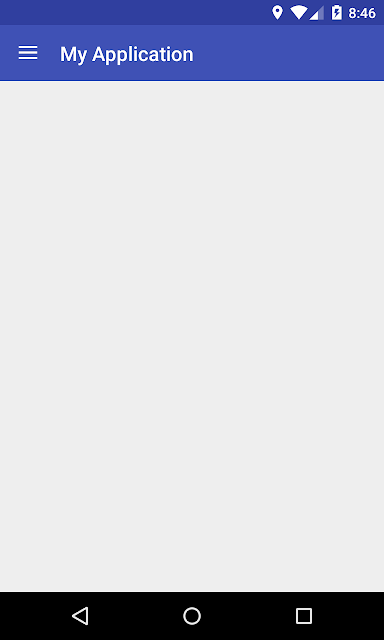
Navigation Drawer is an important feature of any android app. Its need is when you navigate some particular pages of your app. In new android support design library, Navigation View is officially released, before we used Navigation Drawer. Let's create Navigation View.  First  Create New Project Add this library to app's build.gradle file in dependencies and click sync now : compile 'com.android.support:design:23.1.0' Now change to your layout file's content as below where you want to add drawer: <android.support.v4.widget.DrawerLayout xmlns:android="http://schemas.android.com/apk/res/android"     xmlns:tools="http://schemas.android.com/tools"     android:id="@+id/drawer_layout"     android:layout_width="match_parent"     android:layout_height="match_parent"     android:fitsSystemWindows="true"     tools:context=".MainActivity">     <LinearLayout         android:...

ToolBar

Image
ToolBar is complete replacement of Android ActionBar. It provides greater controls to user to customize its appearance unlike Old ActionBar. Its introduced in Android Lollipop, API 21, hence its available to use in Support Design Library .  I encourage you guys to hiding ActionBar and switch to ToolBar from now since new support design library with wonderful features designed to work together with ToolBar not ActionBar. Let's do that. First Create New Project Its easy to switch to ToolBar. Just hide ActionBar from style.xml <style name="AppTheme" parent="Theme.AppCompat.Light.NoActionBar"> <!-- Customize your theme here. --> <item name="colorPrimary">@color/colorPrimary</item> <item name="colorPrimaryDark">@color/colorPrimaryDark</item> <item name="colorAccent">@color/colorAccent</item> </style> Now run your project. You see below output with...

Creating New Project in Android Studio

Image
Say good bye to workspace, welcome to modules. From now a days, we will develop any code in Android Studio. For that, today I'll teach you, how to create android project in Android Studio. Download Android Studio  and install in your system with JAVA installed. After installing Android Studio, create new project as shown below: Then you can see below screen: Here there are 4 fields: Application Name: App name that you see when you install an app Company Domain: You can set any domain Package Name: This name will be unique for each app. That is auto-generated as you type Application Name, it refers as per Company Domain. You can manually edit it. Project Location: Source directory of your project. Click Next , you will see below screen. This is screen for asking which types of devices does support your app. By default, its set to Phone and Tablet and set to your minimum SDK Version. Other options are: Wear: For wear devices like ...

Get Current Location using GPS/Network Provider

Hello to all, Today I teach you that how can we get current location. In android's new SDK tools, LocationManager class does not give any network provider's status. It always gives null value. Still it works in some of the android devices rarely. So that's why I include code for both network provider and gps provider for getting current location. Create one service class name LocationFinder  and implements it LocationListener . All the code which is related to Location, is doing in that service class and from MainActivity , call its method through its instance in onResume() method. The reason you know, why its called in onResume(), because when you enable GPS and come back in activity, then its again check Location's status. In the code, if GPS not enable, I show settings alert pop-up, to go settings menu. When you enable GPS, you will get current location after 2-3 seconds. If not, come again to activity and surely get location. Make sure, must add persmi...

Detect Internet Connection

Let's test a code in which you can detect if there is an active internet connectivity or not in your app programmatically. Create one class named Functions Create one method in that class as below: public static boolean isConnecting(Context context) { ConnectivityManager connectivityManager = (ConnectivityManager) context.getSystemService(Context. CONNECTIVITY_SERVICE ); NetworkInfo activeNetworkInfo = connectivityManager.getActiveNetworkInfo(); return activeNetworkInfo != null && activeNetworkInfo.isConnected(); } Now in your Activity, do this at where you want to check internet connection status: if (Functions.isConnecting(this)) { // you have internet connection // do your stuff here } else { Toast.makeText(this, "No internet connecion.", Toast.LENGTH_LONG).show(); }

Set current date to Button and Datepicker dialog

This tutorial is going to explain how to set current date on Button and when you click on that Button, DatePicker Dialog open to ask your new Date. When you set Date from datepicker dialog, selected Date will be set to that Button. A simple Layout with just only Button.   <Button         android:id="@+id/date"         android:layout_width="match_parent"         android:layout_height="wrap_content"         android:layout_marginTop="10dp"         android:onClick="setDate" /> For Date related task, you have to use Calendar class. And to get current Date, use method getInstance() of Calendar class. Calendar cal = Calendar.getInstance(); mYear = cal.get(Calendar.YEAR); mMonth = cal.get(Calendar.MONTH); mDay = cal.get(Calendar.DAY_OF_MONTH); mYear, mMonth, mDay is of int type. Now set date o...

ListView

Image
Android  ListView  is a view which groups several items and display them in vertical scrollable list. The list items are automatically inserted to the list using an  Adapter  that pulls content from a source such as an array or database. An adapter actually bridges between UI components and the data source that fill data into UI Component. Adapter can be used to supply the data to like spinner, list view, grid view etc. Consider you have an array of strings you want to display in a ListView, initialize a new  ArrayAdapter. ArrayAdapter adapter = new ArrayAdapter<String>(this, R.layout.listview, StringArray);             Here are arguments for this constructor: First argument is the application context. Most of cases, use this. Second argument layout defines in XML file, having TextView for each string in the array. Final argument is the array of strings which will be shown as a list. O...